Somekone Lesson 5
Lesson 5
Impact and ethics.

See the instructions for using the Social Media Machine on the video below. It also gives you a better idea on how to scaffold the lesson.
Teacher, watch this video before the lessons.
In the video below, Jussi Koivisto briefly explains how to Social Media Machine works.

Teacher, show the introductory video
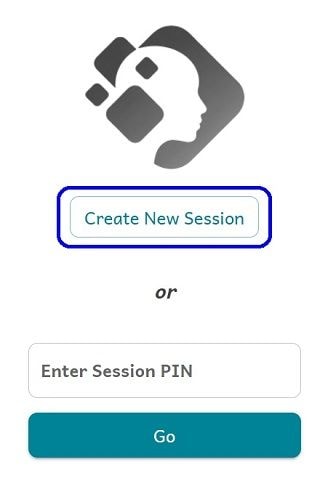
1. A screen similar to the one shown in the image will open on your computer. Press “Create New Session” to create a session for your class.
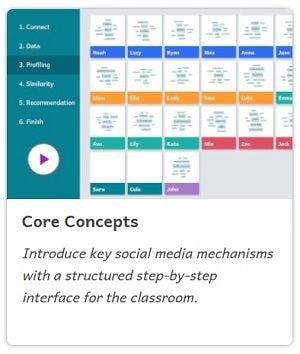
2. Next, choose Core Concepts to start a classroom-ready lesson.
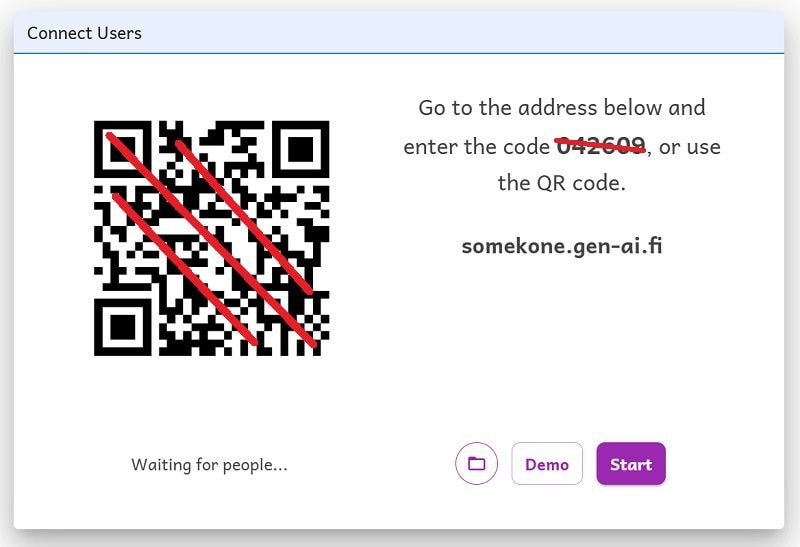
3. Students can join by scanning the QR code of your session or using the 6-digit code at somekone.gen-ai.fi. Click "Start" when all the students have joined.
Open the Social Media Machine on your device
Scan the QR code or enter the code at https://somekone.gen-ai.fi/
Enter a username.
Type in a short username you want to use. You don't need to use your real name.
Start scrolling and using the simulation just like it was a normal social media platform
Like, share and comment on images that you like or can relate to. Be active.
After students have scrolled the simulation for 5-10 minutes, click the next step called "2. Data". The simulation will pause.
To complete the lesson, follow this formula:
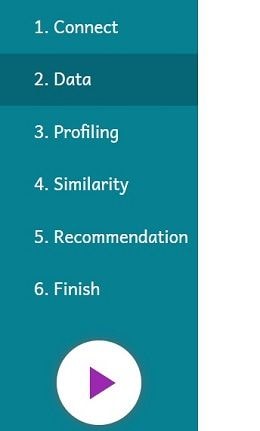
Steps are visible on the left side of the teacher's view. In between each step, students complete their exercises.
Teacher can pause and unpause the simulation at any time by clicking the Play/pause button.

In students' view, the data can be accessed via the icons at the bottom of the screen. The simulation has to be unpaused for them to access the data.
Impact and ethics.